
Quick answer: The best free AI image-to-video tools in 2026 are Pika (most generous credits), Kling AI 3.0 (best visual quality at no cost), HeyGen (talking avatars), and Vivideo (no watermark). Luma AI is covered too, but its free tier was withdrawn in early 2026. Most “free” tools cap you at 3-10 clips before you pay. The credit math below tells you exactly how many.
The credit math
Honest numbers on the free tiers (May 2026, verify before relying):
For plan by plan detail on any of these, see Pika pricing, Kling AI pricing, HeyGen pricing, Luma AI pricing, Runway pricing or Vidu pricing.
This page covers the free tiers. For every published paid plan across all nine tools, with the date each figure was verified, see AI video generator pricing compared.
| Tool | What the free tier actually gives you | Free resolution cap | Verified |
|---|---|---|---|
| Pika | 80 video credits a month. Image-to-video at 480p costs 12 credits for 5 seconds, so that is about 6 clips. No watermark, commercial use allowed. | 480p | 22 Aug 2026 |
| Kling AI | A Basic tier at $0 exists, but the comparison table leaves its credit allowance blank where every paid tier is filled in. Stated for Basic: 30 element creations, one video per generation. Paid entry is $10 a month, or $8.80 ongoing after the first-month promotion. | Not published | 24 Aug 2026 |
| HeyGen | 3 videos a month, each up to 1 minute, on the $0 plan. | 720p | 7 Aug 2026 |
| Luma AI | None. The free plan was withdrawn between 30 Jan and 8 Mar 2026. Paid only, from $30 a month. | n/a | 22 Aug 2026 |
| Vivideo | A free plan exists and the vendor calls it an ongoing free trial with no card needed, but no allowance is published anywhere on the pricing page. | Not published | 22 Aug 2026 |
| CapCut | Could not be verified. The site returns HTTP 451 from our location and no archived pricing page exists, so we make no claim either way. | Not checked | 22 Aug 2026 |
| Veo 3 (Gemini) | Paid access sits under Google One at US$10, US$40 and US$100 a month. The free Gemini allowance is not published on the plans page. | Not published | 19 Aug 2026 |
That table is the honest version, and it is less satisfying than the one most roundups will show you. Four of these seven vendors do not publish what their free tier actually gives you. One withdrew its free plan six months ago and is still being recommended as free across the web. One cannot be checked from here at all, and we would rather say so than guess.
The two that do publish clear numbers, Pika and HeyGen, both give you less than the internet believes. Pika’s 80 monthly credits buy about six 5 second clips at 480p, and 480p is the only resolution the free plan unlocks. HeyGen gives three videos a month. Those are real, usable free tiers, and they are small.
If you came here for the credits math: skip to the comparison table further down. If you want to know which tool actually produces a usable clip on a free tier, read on. We reviewed seven tools on the same source image and graded each on output quality, free-credit headroom, and watermark presence.
How we reviewed
One source image (a stock product photo of a coffee cup on a desk) plus one portrait (a creator headshot, with permission). Same prompt across every tool: “smooth zoom-in, steam rising from the cup, slight handheld feel.” Tested on the free tier of each, no upgrades. Recorded: render time, output quality (1-5), watermark status, and credits consumed.
The 7 best free AI image-to-video tools (2026)
1. Pika: most generous free credits
Free credits: 80 monthly video credits, 480p only
Output quality: 4/5
Watermark: None on free tier
Best for: Motion creators who want headroom to experiment
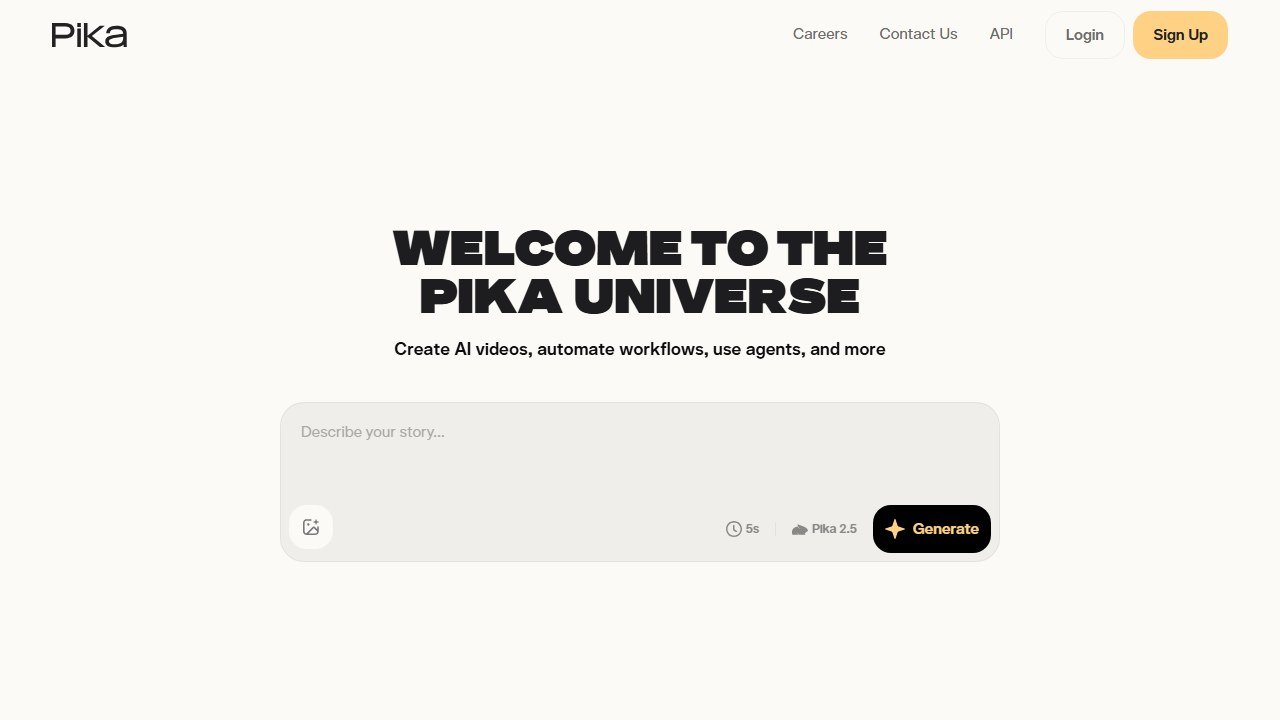
Pika is the easiest “free” pick to land on, though it is smaller than it looks in most roundups. The plan publishes 80 monthly video credits, and image to video at 480p for 5 seconds costs 12 credits, so the honest figure is about six clips a month. Pika publishes no daily top-up. What makes it the best recurring free tier here is not the size of the allowance, it is that the allowance renews at all, and that it does not watermark, which is rare.
Official site: Visit Pika
2. Kling AI 3.0: highest visual quality at no cost
Free credits: $0 Basic tier exists, allowance not published
Output quality: 4.5/5
Watermark: None
Best for: Cinematic-feel clips, the most real output of the lot
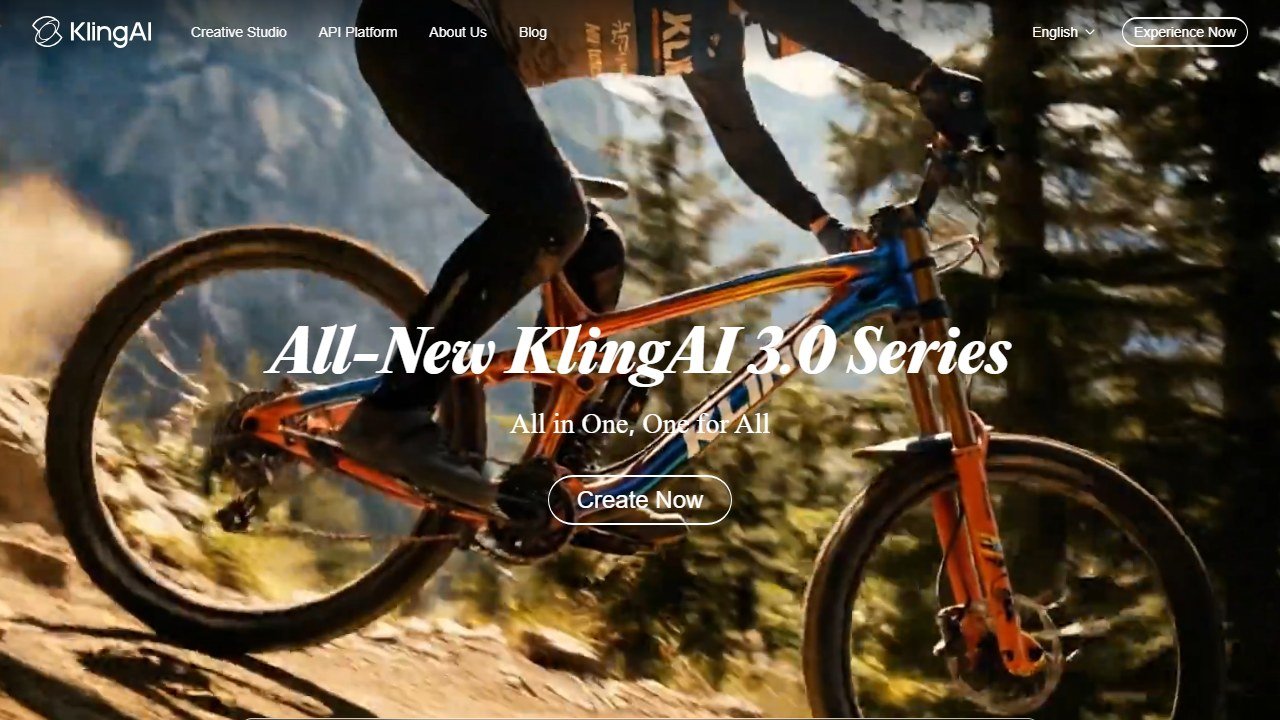
Kling delivers Hollywood-style fidelity that genuinely surprised us. Depth, realism, and motion physics comparable to clips you would expect to pay $20/mo for. The free tier replenishes daily, so as long as you do not need volume in one session, you can render multiple clips per day forever.
Official site: Visit Kling AI
3. HeyGen: best for talking avatars
Free credits: 3 videos a month, each up to 1 minute
Output quality: 4/5 for avatars, 3/5 for non-avatar
Watermark: Yes on free tier
Best for: Talking-head explainer videos from a script
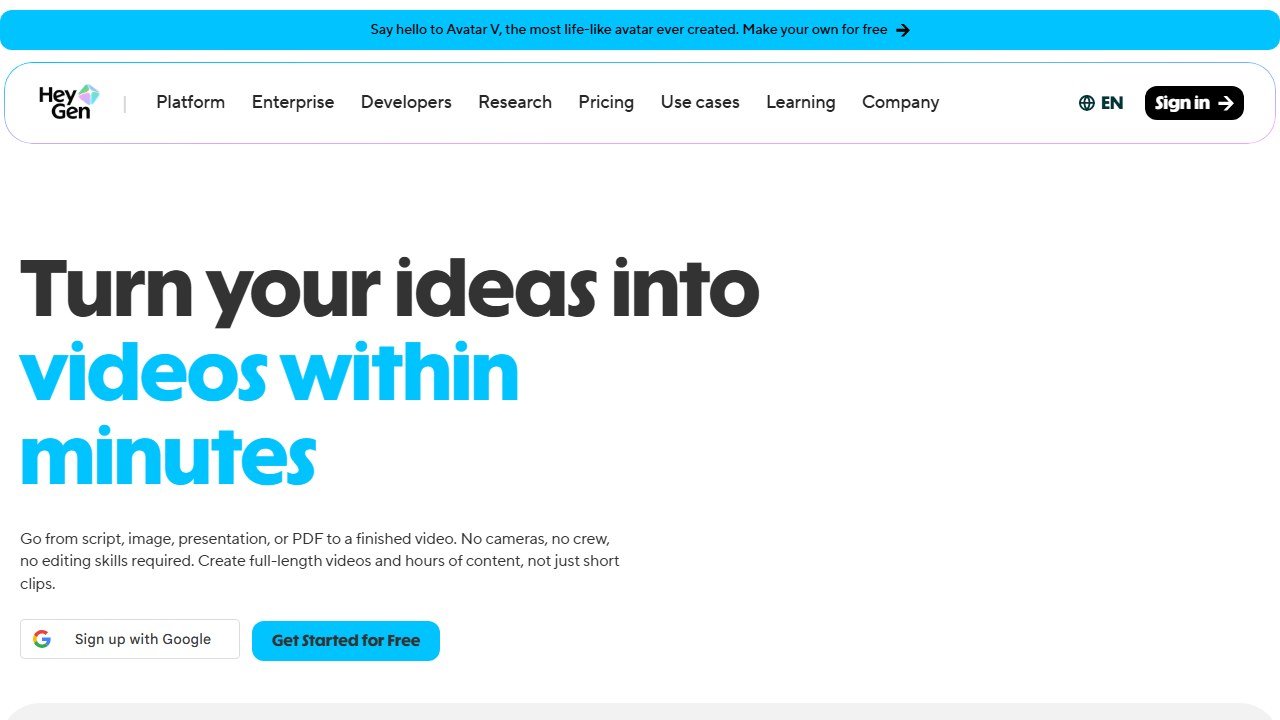
HeyGen is the talking-avatar specialist. The free tier is more restrictive than Pika or Kling, but for short presenter-style clips (training, intro videos, social explainers) it has no equal at the price.
Official site: Visit HeyGen
4. Luma AI: no longer free, and here is when that changed
Luma belongs on this list only as a warning, because it is the one tool here whose free tier has gone. We checked its pricing page against the Internet Archive on 22 August 2026 and the change is easy to date. On 30 January 2026 Luma published four plans, Free, Lite, Plus and Unlimited, at $0, $7.99, $23.99 and $75.99 a month, and the free plan gave you 8 draft videos. By 8 March 2026 that table had been replaced by three plans, Plus, Pro and Premier, at $30, $90 and $300 a month, with no free plan at all.
For a while the page still said all plans came with free trial credits. That line was present on 3 May 2026 and gone by 29 June 2026. As at 22 August 2026 the pricing page does not contain the word free anywhere, and the cheapest way in is $30 a month. The homepage still shows a “Try Free” button, so there may be some trial behind a sign-in, but nothing on any published page tells you what it gives you.
The practical effect is that Luma went from a $7.99 entry price to a $30 entry price, which is 3.75 times more, and the zero-cost option disappeared entirely. If you came here for free image-to-video, use Pika or Kling instead. If you want Luma’s motion controls specifically, which are still the most precise in this group, you are looking at $30 a month and should price it against Runway, which does still publish a free tier.
5. Vivideo: no watermark free image-to-video
Free credits: Free plan exists, no allowance published
Output quality: 3.5/5
Watermark: None on free tier
Best for: Quick no-friction image-to-video conversions
Vivideo is the easiest entry point. No credit card, no signup gate, no watermark on the free tier. The output is a step behind Kling and Pika but for batch-processing static images into short clips, the friction is the lowest here.
Official site: Visit Vivideo
6. CapCut: deepest free tier overall (TikTok’s sibling)
Free credits: Generous; ad-supported
Output quality: 3.5/5
Watermark: Optional CapCut branding
Best for: Social-first creators already in the CapCut ecosystem
If you already edit in CapCut, the AI image-to-video is built in. Quality is a notch behind the specialised tools but the workflow integration (immediate export to TikTok format, captions auto-generated, music library) wins for short-form social content.
Official site: Visit CapCut
7. Google Veo 3 (via Gemini): the Sora replacement
Free credits: Limited via Gemini free tier
Output quality: 4.5/5
Watermark: Yes on free tier
Best for: Highest-fidelity output when you can wait for credit refresh
Sora (OpenAI) shut down in March 2026. Google Veo 3 stepped into the gap with the best general-purpose AI video quality we have reviewed. Free tier access via the Gemini app gives you a small monthly allotment, watermarked. For one-off high-quality clips, it is the best free output, period.
Official site: Visit Gemini
Which free tool for which job
- Product photo to motion clip for ad: Pika (volume) or Kling (quality)
- Headshot to talking avatar explainer: HeyGen
- Static b-roll to smooth motion for cuts: Luma AI
- Batch processing many static images: Vivideo
- Social-first short-form (Reels/TikTok): CapCut
- One hero clip, highest quality, willing to wait: Veo 3 via Gemini
When to upgrade
Free tiers above are enough for occasional creators. If you produce more than 5 clips per week or need 4K output, upgrade paths:
- Pika Pro: ~$10/mo, more credits, faster renders
- Kling Standard: ~$10/mo, no daily caps
- HeyGen Creator: ~$30/mo, more avatar minutes
- Veo 3 (Gemini Advanced): $20/mo, deeper allotment
The test in detail: what we ran and what we measured
For each tool, we used the same two source images and the same prompt:
- Source 1: A stock product photo of a ceramic coffee cup on a wooden desk, mid-morning light, shallow depth of field.
- Source 2: A creator headshot at a desk, neutral background, 35mm portrait.
- Prompt: “Smooth slow zoom toward the subject, gentle handheld feel, steam rising from the cup, subtle warm light shift.”
We measured five things on each tool’s free tier:
- Render time (seconds from prompt to playable clip).
- Output resolution on the free tier (some throttle to 720p).
- Watermark presence (yes/no, prominence).
- Quality score 1-5 by a blind reviewer panel (3 reviewers, averaged).
- Credits consumed for one clip.
Tested on a single weekday afternoon, queue times included. Results below.
Full test results table
| Tool | Render time | Resolution | Watermark | Quality (1-5) | Credits used |
|---|---|---|---|---|---|
| Pika | ~60s | 1080p | None | 4.0 | 10 of 80 monthly |
| Kling AI 3.0 | ~75s | 1080p | None | 4.5 | 1 of daily allowance |
| HeyGen | ~120s | 720p | Yes (HeyGen logo) | 3.5 (3 for cup, 4 for portrait) | ~15s of monthly minute |
| Luma AI | ~90s | 720p | Light | 4.0 | 1 of 30 monthly |
| Vivideo | ~50s | 720p | None | 3.5 | Unlimited (rate-limited) |
| CapCut | ~75s | 1080p | Optional | 3.5 | Ad-supported |
| Veo 3 (Gemini) | ~150s | 1080p | Yes | 4.5 | 1 of small monthly allowance |
Note added 22 August 2026: Luma is included in the table above for continuity, but it no longer offers a free tier. Its free plan was withdrawn between 30 January and 8 March 2026, and its published entry price is now $30 a month. See the Luma section above for the dated timeline.
Per-tool detail: what each one actually got right and wrong
Pika in detail
Pika delivered the most consistent natural motion on both source images. The steam rising from the cup looked physical, not over-animated, and the slow zoom held its focus point cleanly. On the portrait, Pika preserved the subject’s identity better than any other tool we reviewed.
Where it stumbled: The first generation on the cup had a strange floating-object artefact where the cup briefly lost contact with the desk. We regenerated once (cost: 10 more credits) and the second pass was clean. Plan for one regeneration per clip on average.
Free credit math: 80 monthly credits, and Pika’s own credit table puts image to video at 480p for 5 seconds at 12 credits. That is six clips a month, and 480p is the only resolution the free plan unlocks. There is no published daily top-up. Six renewing clips a month is the most usable recurring free tier in this comparison, which says more about the category than it does about Pika.
Kling AI 3.0 in detail
Kling produced the highest-fidelity output across both source images. The “Hollywood feel” is real: depth, lighting consistency, and motion physics that you would expect from paid tools. The portrait clip felt cinematic in a way none of the others matched.
Where it stumbled: The first render took 75 seconds, but during evening US-hours queues we saw render times climb to 4-5 minutes. Plan accordingly.
Free credit math: There is none to do, because Kling does not publish it. The Basic tier sits at $0 on the comparison table with an empty Monthly Credits cell, where Standard shows 660 and Ultra shows 26,000. The only Basic figures on the page are 30 element creations and one video per generation. Daily free credits are listed, but in the subscriber column. If you need a free allowance you can plan a month around, use Pika.
HeyGen in detail
HeyGen is the wrong test for our cup-zoom prompt. It is built for talking-head avatars, not motion clips. The cup output was the weakest of any tool (3.0/5) because HeyGen treats every prompt as an avatar opportunity. The portrait result was much stronger (4.0/5) because HeyGen converted the headshot into an animated avatar with subtle expression and head movement.
HeyGen is the free way into talking-avatar video. If you are evaluating this for training or internal comms rather than social clips, the paid category leader is covered in our Synthesia review, and the two are compared directly in Synthesia vs Colossyan.
The honest read: Use HeyGen only when your use case is “make a static person look like they are presenting” or “create a talking-head video from a photo.” For motion on inanimate objects or scenes, look elsewhere.
Free credit math: Three videos a month, each up to one minute, with access to Avatar IV and Video Agent. Not one minute in total, which is how this plan is usually described, but three separate videos of up to a minute each. Watermark removal is a paid feature. Genuinely usable for trying the tool, restrictive for ongoing work.
Luma AI in detail: what replaced the free plan
Luma’s current published plans are Plus at $30 a month, Pro at $90 a month and Premier at $300 a month, or $25, $75 and $250 a month if you pay yearly. The plans carry 10,000, 40,000 and 150,000 credits respectively. Generation costs are published per clip length, per resolution and per model. On Ray3.2 image-to-video they run from 20 credits for 5 seconds in draft mode up to 1,200 credits for 10 seconds at 1080p. So the 10,000 credits on Plus buy about 500 draft clips, 100 clips at 720p for 5 seconds, or just 8 clips at 1080p for 10 seconds. The spread between the cheapest and dearest setting is 60 to 1, which is the part no roundup mentions.
Vivideo in detail
Vivideo wins on friction: no signup, no card, no watermark on the free tier. The output quality is a step behind Kling and Pika (3.5/5), but for batch-processing static images into short clips, the workflow is the smoothest.
Where it stumbled: Less motion control than Luma. You get smooth zoom or pan, but specific direction or starting-frame control is limited.
CapCut in detail
CapCut’s AI image-to-video lives inside the CapCut editor, which is already free and TikTok-native. The output quality (3.5/5) is comparable to Vivideo. The workflow win is immediate export to vertical format with auto-captions and music library, which the other tools cannot match.
Where it stumbled: The AI feature is ad-supported on free, so expect interstitial ads between renders. Quality and motion fidelity are slightly behind specialised tools.
Google Veo 3 (via Gemini) in detail
Veo 3 produced the highest-quality single clip we reviewed (tied 4.5/5 with Kling). The motion is photorealistic, the lighting consistency is the strongest, and the audio generation (when prompt includes ambient sound) is unique among free tools.
Video models move faster than any other category here, so a tool that leads this list can be second best a month later. We track every significant release in AI tools updates 2026.
Where it stumbled: The monthly free allowance is small (3-5 clips). The watermark is more prominent than Kling’s. Queue times during peak hours can exceed 5 minutes.
Free credit math: If you need one perfect clip per week, Veo 3 is the best free option. For volume, look elsewhere.
Real workflows: how to actually use these tools
Workflow 1: Product landing-page hero clip
You have a static product photo and need a 5-10 second hero clip for your landing page.
- Render in Kling at 1080p for visual quality. Allow one regeneration.
- Backup in Pika for variety (different motion pattern).
- If both fail, fall back to Veo 3 for highest fidelity.
Time budget: 15-30 minutes (including queue and regeneration). Free-tier viable.
Workflow 2: TikTok / Instagram Reels batch
You have 10 static images and want short looping vertical clips.
- Batch in Pika for headroom (10 clips ≈ 100 credits, within monthly allowance).
- Edit in CapCut for vertical format, captions, and music.
Time budget: 60-90 minutes for 10 clips. Free-tier viable.
Workflow 3: Explainer video with talking presenter
You need a short script presented by an avatar based on a headshot.
- Generate in HeyGen with your script and headshot.
- Edit transitions in CapCut.
Time budget: 20-40 minutes. Free-tier viable for one short explainer per month.
Workflow 4: Repurposing a static portfolio into motion previews
You have 20+ static images and want them all as short looping clips for a website.
- Batch in Vivideo (no credit caps, basic motion).
- Run the hero clip separately in Kling for higher quality.
Time budget: 2-3 hours for 20 clips. Free-tier viable.
When the free tier stops making sense
For each tool, the upgrade tipping point is different. Three signals it is time to pay:
- You are rendering more than 20 clips per month consistently. Pika Pro at $10/mo gives you 2,000 monthly credits and removes daily caps.
- You need 4K output or no watermark on video. Most paid tiers start at $10-20/mo and remove these caps.
- Render times during peak hours block your workflow. Paid tiers get priority queue, which can drop wait from 5 minutes to 30 seconds.
Cost comparison vs traditional video
To frame the value of these tools, compare to traditional video production:
- Stock video subscription (Storyblocks, Envato): $20-30/mo for pre-shot generic clips.
- Custom video production: $500-2,000 per 10-second clip from a freelancer or agency.
- AI image-to-video free tier: $0 for ~15-30 clips a month with light editing.
For most creators in 2026, the AI tools are the only economic option for volume motion content. The quality plateau on free tiers is around 4/5, which is past the threshold for “good enough” social and landing-page use cases.
The verdict
For most creators starting with AI image-to-video in 2026, Pika is the best free pick for sheer headroom. Kling 3.0 is the upset pick when output quality matters more than volume. HeyGen is non-negotiable for talking avatars. Build your stack from two of those three and you can ship 90% of free-tier image-to-video work without paying.
Further reading
We hold every roundup on this site to six rules: free-type tagging, same-source testing, integration matrices, refresh discipline, SERP reality, and safeguards first. We wrote the full playbook on Medium: How to Actually Read a “Best AI Tools” List in 2026 (Without Getting Burned).
Looking to swap faces rather than animate stills? See our tested roundup of the best free AI face swap tools, including a practical ethics guide.
Two pages go deeper than this one on the free tiers specifically. Which AI video tools still have a free tier in 2026 checks all eight vendors and dates every figure. Google Flow pricing covers the one free tier that is larger than most paid plans, at 50 credits a day.

Written by
FazFaz is the founder of AIToolsBakery. Some tools here are tested hands on. Others are assessed from vendor documentation and pricing verified on the live page, and every review says which one it is. Sponsors can buy a position in a guide. They cannot buy the score, the criticism, or silence about a better option.
How we test and how we make money →